1. Sign in
Your welcome email has your address and a temporary password. Sign in and choose your own. Your brand (name, logo, colour) is set once and used across every Varisett platform you have.
Recommended: turn on two-step sign-in. On Your account, press Set up two-step sign-in and scan the code with an authenticator app on your phone (Google Authenticator, Microsoft Authenticator or similar). After that, signing in asks for the 6-digit code from the app as well as your password, so a stolen password isn't enough.
2. Settings
- Setup → Settings.
- Billing defaults: payment terms, VAT rate and the note at the foot of your invoices.
- Whether customers usually pay on completion, later on terms, or not at all, as the default for new customers.
- Job types, such as "Annual boiler service", with a usual length and the certifications they need. A job of that type can only go to an engineer holding them.
- Also use Varisett Marketing? A new job type is suggested there as news ("Now offering: …") for you to use or skip.
- Window cleaning or grounds maintenance? Under Job types, press your trade's starter set to add its usual job types (and certificates such as spraying or chainsaw tickets) in one go, and tick the box to remove the heating examples if you don't need them. Then edit them to suit.
- The length of a standard working day, for overtime on timesheets.
3. Your team's logins
- Setup → Team logins.
- Invite each office person with their email and their roles: dispatcher, finance, fleet manager, compliance officer. One person can have several.
- Using more than one Varisett platform? When you invite someone, tick "Also give them access to" for the others in the same step. When someone leaves, press "Has left the business" next to their name: their sign-in stops on every platform at once, their records stay, and you can undo it.
- Engineers can sign in with an email too, or with an Operative ID and PIN (step 4), which suits a shared or work phone.
4. Engineers
- Resources → Engineers, then add each engineer.
- Their base postcode, so routes start from the right place.
- Their skills, and their certifications with expiry dates (Gas Safe, 2391 and so on).
- Also use Varisett LMS? Link a certification type to the LMS certificate on Resources → Compliance ("Counts from the LMS"). Engineers who hold it in the LMS then have it here, marked "From the LMS", and it's renewed there.
- Operative sign-in: give them an ID (e.g. TH01); a PIN is made and shown once. They sign in at yourbusiness.varisett.com/operative.
- Teams & crews: group people who ride together in one van. Jobs given to a crew go to its driver.
- Also run a staffing agency on Varisett Staffing? Resources → Engineers → Ask for cover sends a gap (where, day, times, role, how many) to your own agency office, and shows when it's covered and who's coming.
- Assistant teams: under Assists, tick the teams a team helps. Its members see those teams' jobs on their day (and can hide them), and its driver or lead can pick up any job nobody has started. The job moves to them, both teams see its latest status, and the job page shows who picked it up and when.
Good to know: An engineer whose certification has expired can't be given a job that needs it. The system refuses, whoever tries.
5. Parts and prices
Resources → Parts holds what you sell and charge for: labour per hour, call-out, services, parts with cost and price and how many you hold. Quotes and invoices are built from it.
6. Customers and sites
- Customers → Customers → add one, with how they pay and their terms.
- Also use Varisett Warehouse? On the Parts list, link each part to its Warehouse item (or add Warehouse items as parts), and on Resources → Fleet choose each van's Warehouse location. Parts an engineer records on a job ("Parts used" on the job) then come off that van's stock in the Warehouse.
- Also use Varisett Marketing? An enquiry its inbox passes on to you shows at the top of the Customers page under "Passed to you", with their note: add them with one click (or open the one you already have) and take it from there.
- Also use Varisett Bookings, Warehouse or Staffing? Their customers are listed under yours, to add with one click, and a customer's page suggests any with the same email or phone to link. Linked, their email and phone stay the same everywhere (and the address with Bookings).
- Add each site with its postcode. It's placed on the map, for routes and navigation.
- Add access notes (key safe, parking) and a site contact.
- Each customer has a private portal link to send them.
7. Vans and equipment
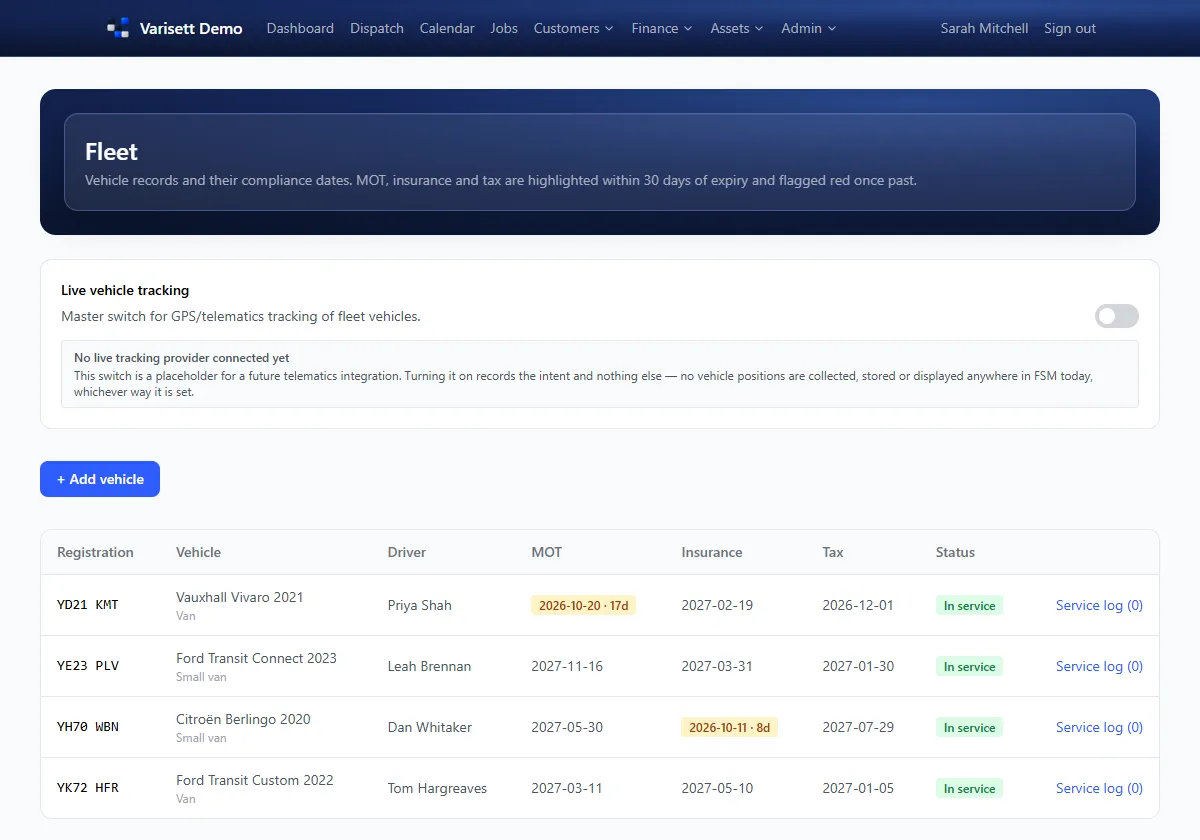
Resources → Fleet: each van with its driver and MOT, insurance and tax dates. Resources → Assets: customers' equipment, with service intervals and warranty dates.
8. Your first job
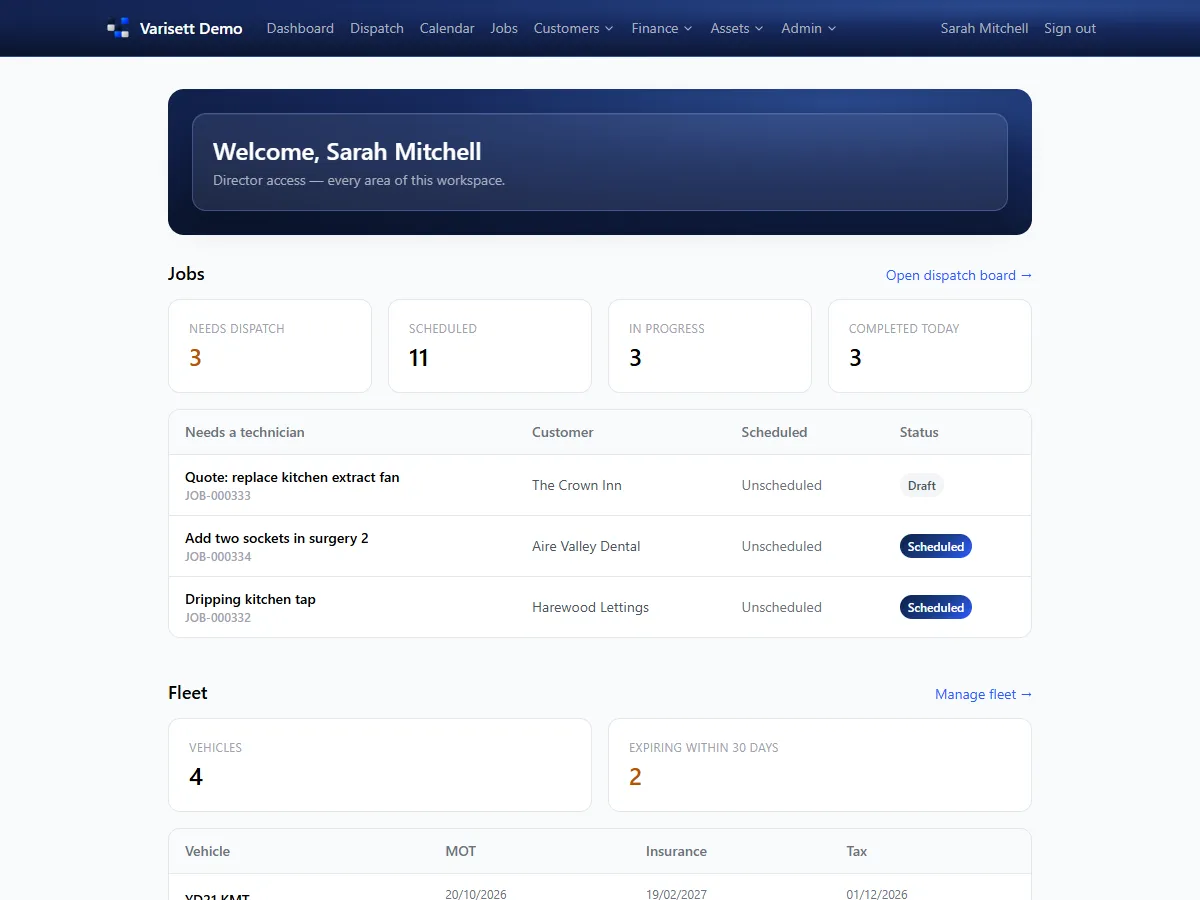
Jobs → New job, or click an empty slot on the calendar. The dispatcher guide covers the rest.
Screens show the real Varisett FSM with made-up example data. Your own system carries your name, logo and colour.