1. Business settings
- Setup → Business settings.
- Choose your kind of business (health, hair and beauty, animal care, vehicles, repairs, studios, or general). It sets the words used everywhere, like Patients or Pets; you can change any of them.
- Rename the job titles if you like (Practitioner → Stylist, Reception → Front desk). The access each one gives stays the same.
- Your brand (name, logo, colour) is set once and used across every Varisett platform you have.
- Recommended: turn on two-step sign-in. On Your account, press Set up two-step sign-in and scan the code with an authenticator app on your phone (Google Authenticator, Microsoft Authenticator or similar). After that, signing in asks for the 6-digit code from the app as well as your password, so a stolen password isn't enough.
2. Sites, hours and rooms
- Setup → Sites & rooms → add each site with its address, time zone and opening hours for each day.
- Add closed days (bank holidays, training days). Nothing can be booked on them.
- Add rooms or equipment, by type (e.g. "Treatment room"). A service can need one, and two bookings can't share it.
3. Services
- Setup → Services → add each one with its length, a gap after it if you need one, its price and an optional deposit.
- Say which sites offer it (with a different price per site if needed), and whether it needs a skill or a room.
- Also use Varisett Marketing? A new service, a new site and a day a site is closed are suggested there as news for you to use or skip.
- Also use Varisett LMS? Under Skills, a skill can count from an LMS certificate. Everyone holding a current one then has the skill, marked "from the LMS" on their page, and it goes if the certificate expires.
4. Staff and their sign-in
- Staff → Staff → add each person: their sites, skills, job title and a diary colour.
- Give staff who don't use email a Staff ID and PIN. They sign in at the address shown, on their phone.
- Setup → Team logins: invite managers, reception and finance by email, with their roles.
- Using more than one Varisett platform? When you invite someone, tick "Also give them access to" for the others in the same step. When someone leaves, press "Has left the business" next to their name: their sign-in stops on every platform at once, their records stay, and you can undo it.
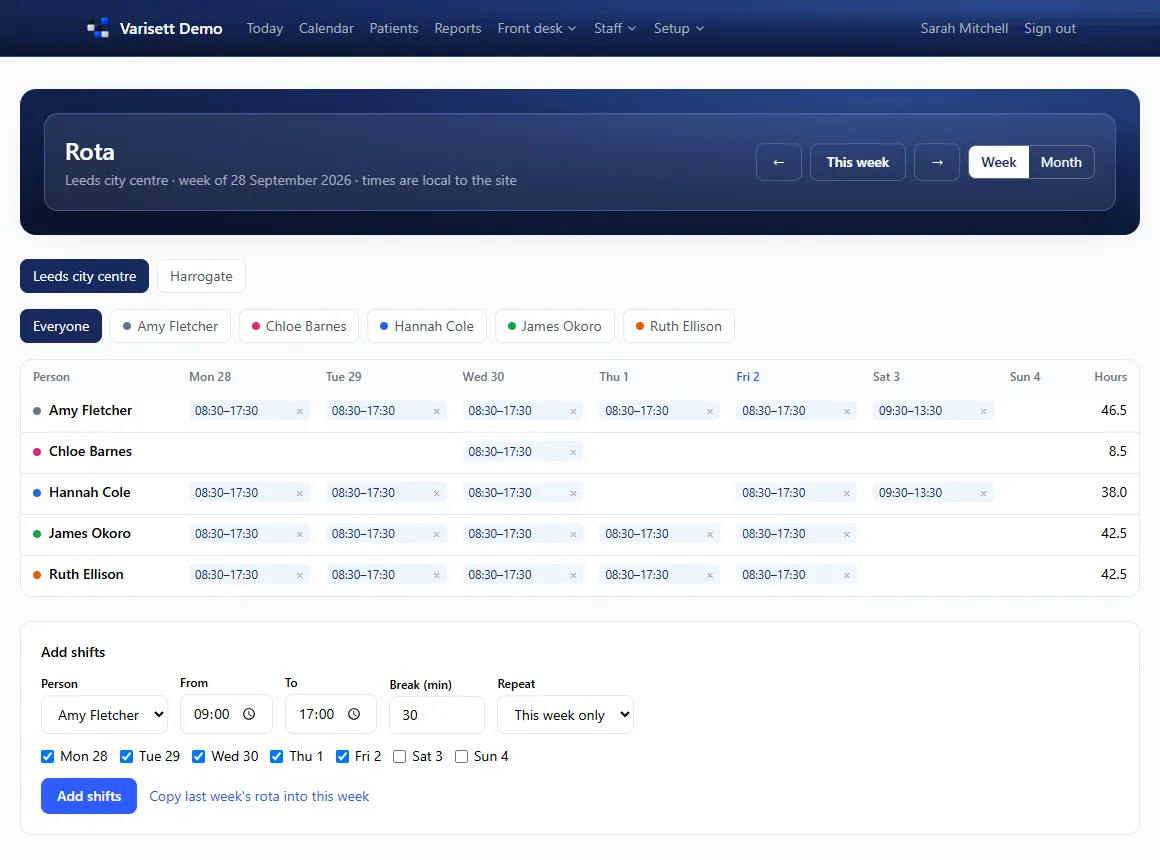
5. The rota
Staff → Rota: add shifts for each person and site, for one week or repeating, or copy last week. People can only be booked when they're on the rota.
Also run a staffing agency on Varisett Staffing? Under the rota, Ask for cover sends a gap (day, times, role, how many) to your own agency office. It shows here as Asked, then Covered with who's coming, and you can cancel it while it's still ahead.
6. Payments
- Setup → Payments: your bank details and invoice wording, and a payment link if you use one.
- Optionally connect your own Stripe account so clients can pay by card from their invoice link. The money goes straight to you, never through Varisett.
7. Messages
- Setup → Messages: connect your own mailbox (Microsoft 365, Google Workspace and others, with a guide) and send a test.
- Also use another Varisett platform? Once your mailbox works on one of them, the others offer "Use your business mailbox" on their email settings, so you don't type the settings or the password again.
- Optionally connect your own Twilio account for texts.
- Switch on confirmations, reminders (how many hours before) and cancellations, and edit the wording.
- For health businesses the standard wording says "your appointment" rather than naming the treatment, so a message seen by someone else gives less away. You can still change it.
Screens show the real Varisett Bookings with made-up example data. Your own system carries your name, logo and colour.