Help · Varisett Bookings · Practitioner and any staff member

Your diary and shifts (practitioners)

Sign in on your phone, clock in, see your appointments and shifts, and ask for leave.

Sign in

With the email and password you were sent, or your Staff ID and PIN at the staff sign-in address. Five wrong PINs lock the ID for 15 minutes.

Clock in and out

Staff → My shifts: choose your site and Clock in when you start; Clock out when you finish. Your coming shifts are listed underneath.
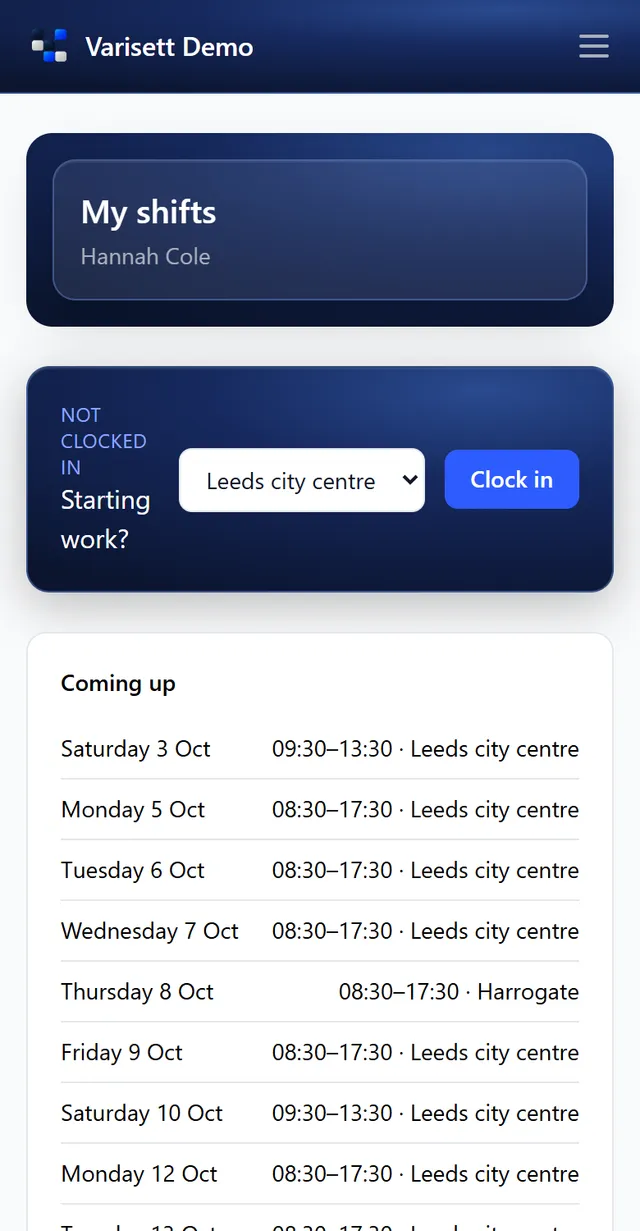
Staff on their phone: Clock in at their site and see their shifts coming up.
Staff on their phone. Clock in at their site and see their shifts coming up.

Your appointments

Calendar shows your day. Open an appointment for the client's details and notes, and to mark where it's up to.

Ask for leave

From Staff → My shifts, ask for a day or more off with a note. Your manager approves it and it appears on the rota.

Screens show the real Varisett Bookings with made-up example data. Your own system carries your name, logo and colour.

More Varisett Bookings guides
DirectorGetting started as the directorSet up Varisett Bookings: your type of business, sites and opening hours, rooms, services, staff, logins, payments and messages.Reception and financeFront desk: booking, check-in and paymentBook appointments that can't clash, check clients in and out, take deposits and payment, and keep the waiting list.ManagerRunning your sites (managers)Services, rota, leave, attendance and monthly reports for the sites you run.
Varisett Bookings

Your own Varisett Bookings, on your own address

Every feature on every plan, priced by team size. Live shortly after you order.

See plans & orderBook a call