1. Business settings
- Setup → Business settings.
- How stock is put away (to the item's home, next to the same item, nearest empty) and allocated to orders (first in first out, earliest expiry first, pick faces first).
- Limits: how big an adjustment or purchase order can be before a manager must approve it.
- Whether part shipments and back orders are allowed, whether customers can order from their portal, and whether packing means scanning each item.
- Switch on manufacturing or 3PL if you need them.
- Your brand (name, logo, colour) is set once and used across every Varisett platform you have.
- Recommended: turn on two-step sign-in. On Your account, press Set up two-step sign-in and scan the code with an authenticator app on your phone (Google Authenticator, Microsoft Authenticator or similar). After that, signing in asks for the 6-digit code from the app as well as your password, so a stolen password isn't enough.
2. Draw your map
- Setup → Sites: add your site.
- Map → Build a structure: make aisles, bays and levels in one go (A to D, 01 to 06, 1 to 3). Locations can sit inside locations to any depth: an area, a rack, a shelf, a bin.
- Add the special places: goods in, quarantine, returns, dispatch, packing.
- Say which locations hold stock, which are pickable, and any capacity. Picking walks them in order, snaking along the aisles if you choose.
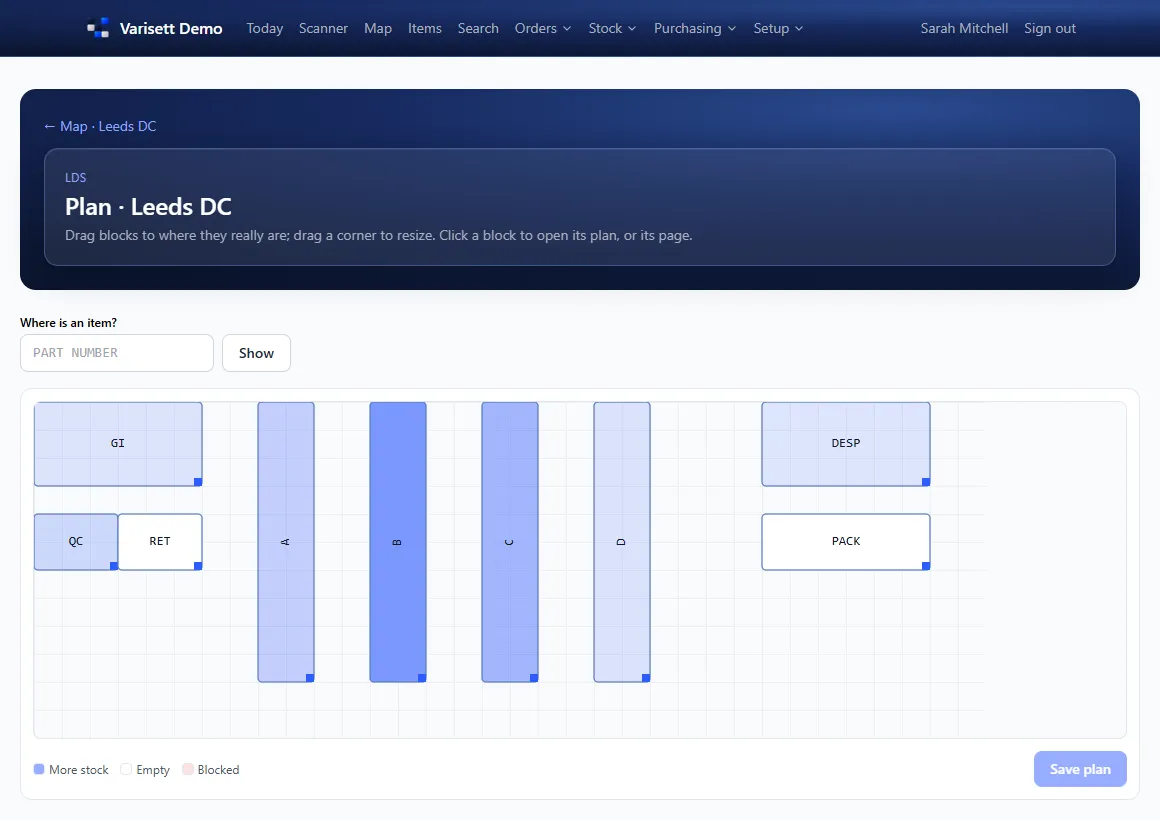
- Plan view: arrange the blocks to match your floor.
- Print location labels.
3. Items
- Setup → Item categories, each with its own part number format.
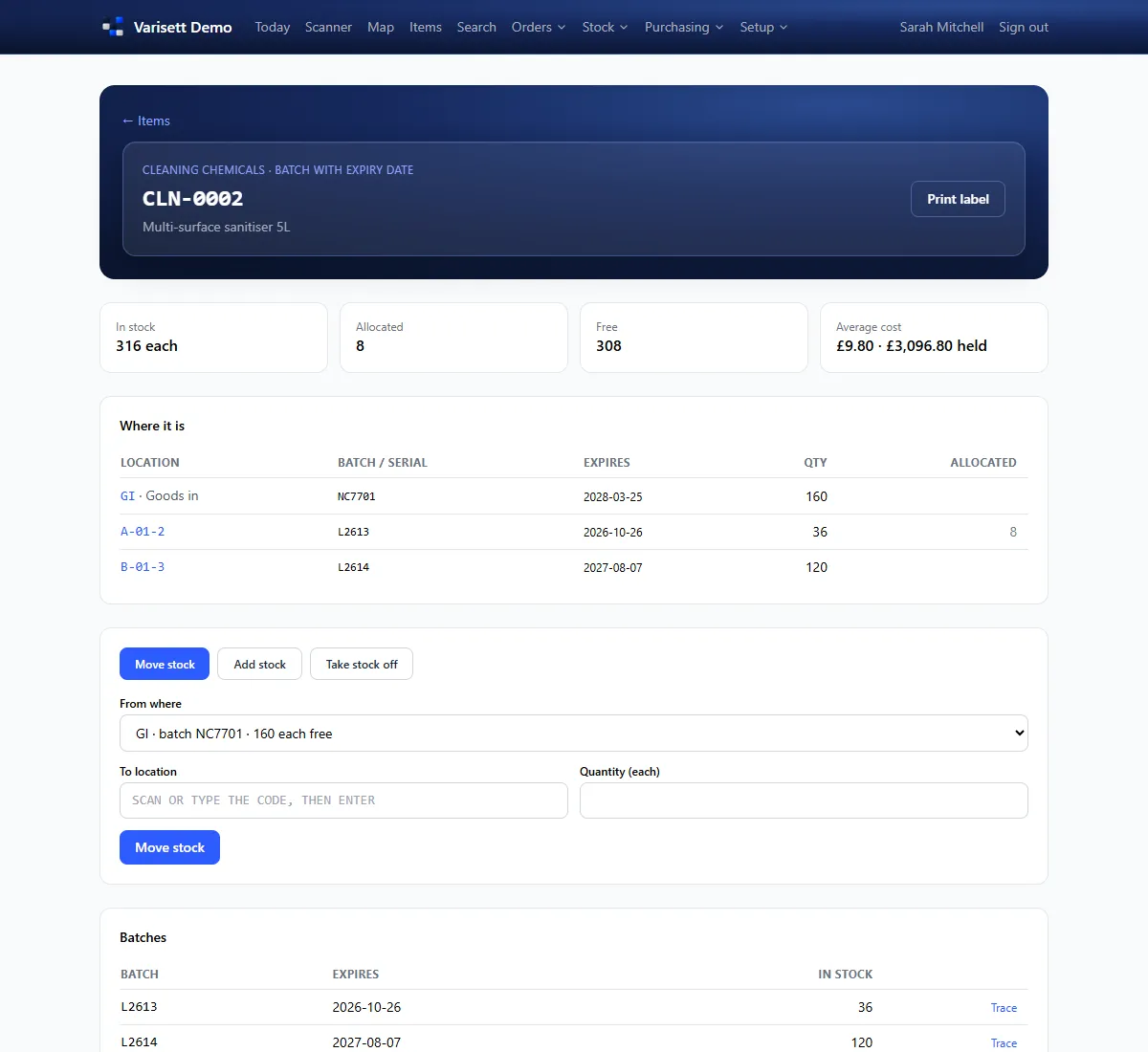
- Items → add each item: description, unit, reorder point and quantity, and how it's tracked (none, batch, batch with expiry, or serial number).
- Add barcodes and supplier codes, and print item labels.
- Bring in opening stock with an adjustment, or receive it against a purchase order.
4. Staff and scanners
- Setup → Team logins: office people by email, with their roles.
- Setup → Email: your own mailbox, for purchase orders and delivery notes. Also use another Varisett platform? Once your mailbox works on one of them, the others offer "Use your business mailbox", so you don't type the settings or the password again.
- Also use Varisett FSM? Make a location for each van in your map and tick "Field stock" in its settings. Parts the engineers record on their jobs come off that location's stock; anything that couldn't (say the van's count was wrong) shows on your dashboard to put right and retry. Low stock then shows in Purchasing's reorder suggestions as usual.
- Using more than one Varisett platform? When you invite someone, tick "Also give them access to" for the others in the same step. When someone leaves, press "Has left the business" next to their name: their sign-in stops on every platform at once, their records stay, and you can undo it.
- Setup → Warehouse staff (PIN): floor staff with a Staff ID and PIN, and their roles. They sign in on a handheld scanner or Android phone at the staff sign-in address.
5. Email
Setup → Email: connect your own mailbox so purchase orders and delivery notes go from your address. Send a test.
6. Connections
Setup → API and webhooks: make keys for your own systems (items, stock, orders, customers, shipments). Setup → Shopify: bring paid orders in, send fulfilments and tracking back, and keep stock levels in step.
Every day
Today shows what's waiting (lines to put away, deliveries due, open orders, orders ready to pack), stock value, items to reorder, anything expiring, and the latest movements.
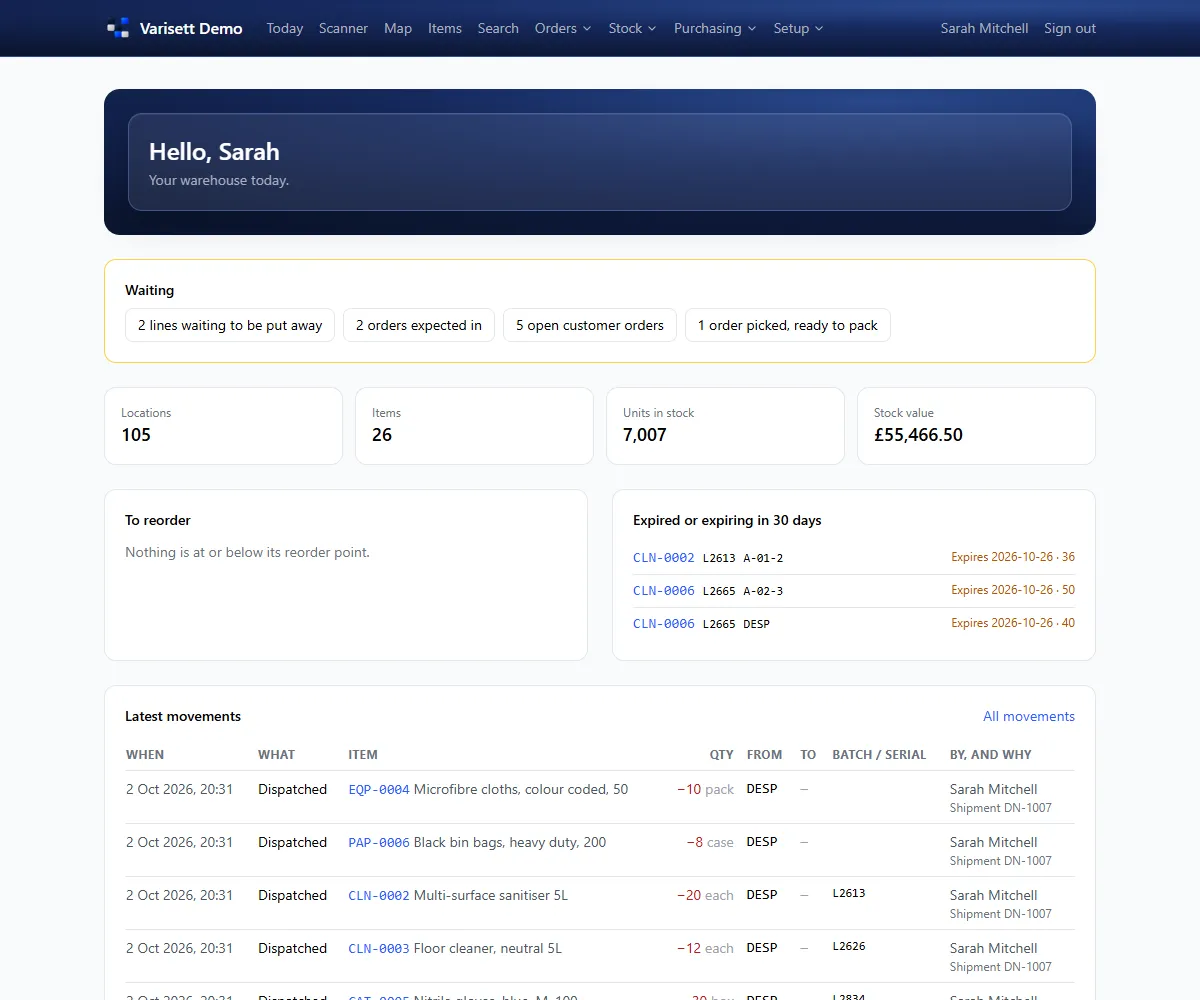
Screens show the real Varisett Warehouse with made-up example data. Your own system carries your name, logo and colour.